
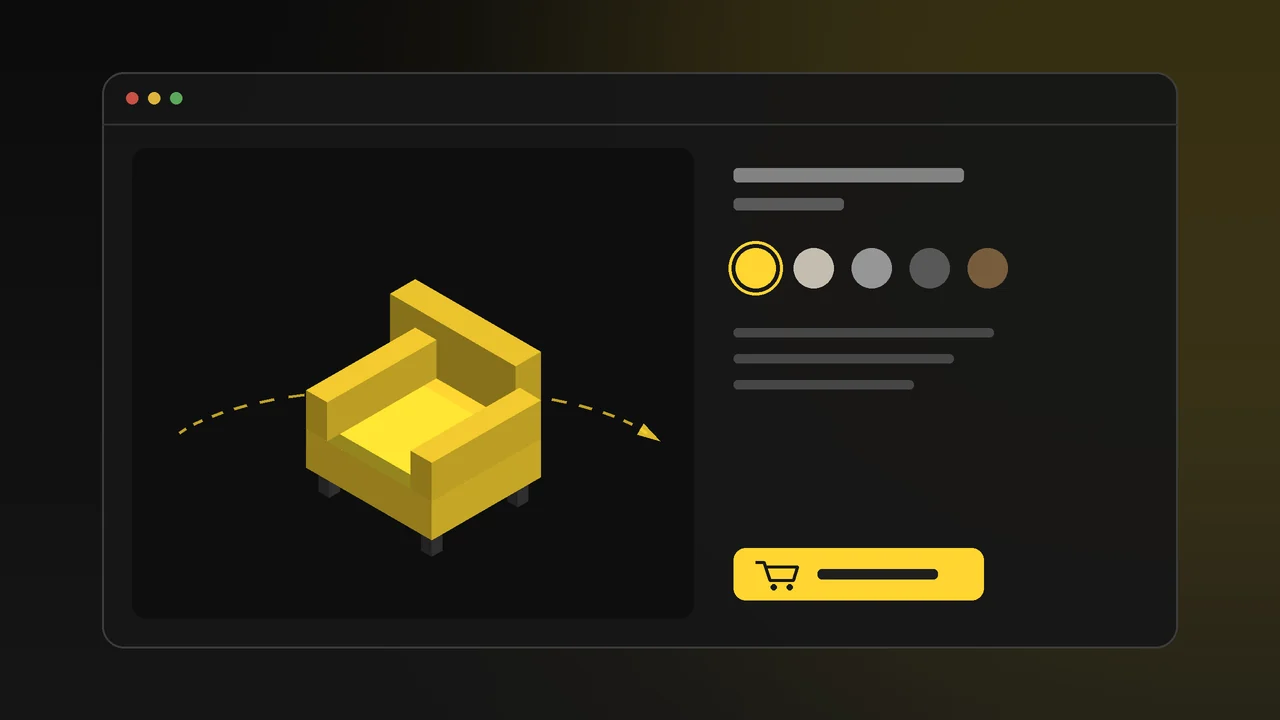
In a store built with WooCommerce, the product gallery is made of photos. WooCommerce has no built-in feature for showing a product in 3D, that is, letting the customer rotate and zoom it. This is done with a plugin or with a 3D viewer added to the theme.
In this article we explain the ways to show 3D products in WooCommerce, what to look for when choosing a plugin, how to prepare the model file, and what you need when you want colour or material options to change on the 3D model itself.
Two routes to 3D in WooCommerce
- A 3D viewer plugin: The WordPress plugin directory has free and paid plugins that add a 3D model to the product page. Most use Google's open-source model-viewer component or the three.js library. They add a 3D model field to the product edit screen and show the model in or above the gallery.
- A custom integration: The 3D viewer or configurator is placed directly in the theme's product page template. Appearance, loading behaviour and the link with variations are all set up around the product.
For single-colour products with few options, a good plugin is often enough. For products where options combine, or when the brand wants a presentation of its own, a custom integration comes to the fore.
What to look for when choosing a plugin
- Maintenance: Check the plugin's last update date and whether it has been tested with current versions of WordPress and WooCommerce. A plugin that has not been updated for a long time can break the product page after an update.
- File format: GLB support is a must. GLB is the widely accepted format for 3D models on the web; the model, materials and textures live in a single file.
- Variation support: If your product has colour variations, check whether the plugin can assign a separate model to each variation. Some plugins support this, others show one model per product.
- AR view: Check whether there is an option to show the product in the customer's own surroundings with the phone camera. On iPhone this may require an additional USDZ file.
- Loading behaviour: Check whether the model loads as soon as the page opens or only when the customer touches it. The latter protects the speed of the product page.
By default, WordPress does not allow .glb files to be uploaded to the media library. 3D plugins usually enable this file type themselves; if one does not, you get a "file type is not permitted" error on upload.
How should the 3D model file be prepared?
Whichever plugin you use, what the customer sees is the model itself. A good viewer cannot rescue a poorly prepared model.
- File size: Aim for a few megabytes per product model. On shared WordPress hosting, large files download slowly; the customer on a phone waits and gives up.
- Real-world scale: The model must match the product's real dimensions. Whether the product stands at the right size in the room in AR depends on this.
- Light geometry, realistic materials: Parts not visible from outside are removed; the look of fabric, wood, metal and glass comes from materials and textures. Textures are compressed for the web.
- Preview image: An image is prepared to show until the model loads. The gallery is never empty and the page does not shift.
If the product has a CAD file, the model is prepared from it; if not, it is modelled from technical drawings or from photos and dimensions. See our article on 3D product modeling for the process.
Variations: a separate model for every colour?
If an armchair in WooCommerce comes in five fabric colours, most plugins require you to prepare a separate GLB file for each colour and link it to the matching variation. On a product where fabric, leg and arm options combine, that number quickly runs into dozens; each one is a separate file, a separate upload and separate maintenance.
This is where a 3D product configurator comes in. The configurator defines all fabrics, colours and parts on a single model. The product changes instantly as the customer chooses; adding a new colour does not need a new model, only a new material.
A 3D configurator on a WooCommerce product page
The configurator is placed on the product page instead of or next to the gallery. Customers rotate the product and change its options; cart and checkout stay in WooCommerce's own flow. The selection in the configurator is matched to a WooCommerce variation: whatever combination the customer picks on the 3D model is added to the cart as that variation, and the price updates accordingly.
To see what the experience is like, take a look at the examples in our 3D Web App: in the furniture, cosmetics and packaging examples, the options change on the model. We integrate the same system into your WooCommerce store with your product. Details are on our 3D web design and product configurator page.
The same model, other work
The 3D model prepared for the store does not stay on the product page. The same model produces white-background catalogue images, campaign images and short product videos for social media. When a new colour arrives, there is no photo shoot; it is rendered from the model. See our 3D rendering page for images and our 3D product animation page for video.
Frequently Asked Questions
Does WooCommerce always need a plugin for 3D?
WooCommerce has no built-in 3D support. Either a plugin is used, or a 3D viewer or configurator is added to the theme as a custom integration.
Which file format should be used?
GLB. The model, materials and textures live in one file and open quickly in the browser. For the AR view on iPhone, some plugins also ask for a USDZ file.
Will a 3D model slow my site down?
A properly prepared model that loads when the customer touches it will not. Problems usually come from models of dozens of megabytes that were never optimised for the web.
We do not have a 3D model of our product. What should we do?
If you have a CAD file, the model is prepared from it. If not, it is modelled from technical drawings, or from photos and dimensions. The same model is used for the store, the configurator, product images and animation.
Does the configurator work with WooCommerce variations?
Yes. During setup, every selection in the configurator is linked to a WooCommerce variation; the combination the customer picks is added to the cart as the right variation at the right price.